Connect a NextDNS account
This guide connects ADNS to the NextDNS service. It does not require Shizuku or ADB unless you later choose Android device control. ADNS is an independent project and is not affiliated with NextDNS.
Open NextDNS sign-in
Section titled “Open NextDNS sign-in”Use the path that matches where you are in ADNS:
- During first run, choose Choose a provider, then NextDNS (Recommended).
- After setup, open Settings, select Change Provider, then select NextDNS (Recommended).
Both paths open the same connection flow when there is no saved NextDNS session.
Sign in with email and password
Section titled “Sign in with email and password”Email and password is the default form. Enter your NextDNS email and password, then enter a two-factor code if NextDNS asks for one. ADNS uses the password and two-factor code transiently for sign-in and does not store them. It encrypts and persists the signed-in email (or an account label for API-key sign-in) and API key locally until you log out.
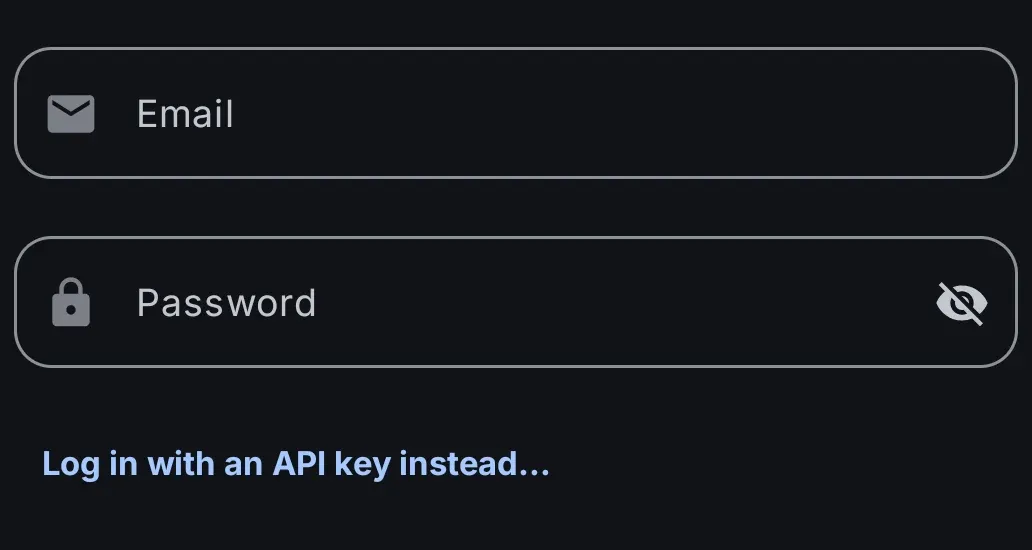
Or use an existing API key
Section titled “Or use an existing API key”On the email-and-password form, choose Log in with an API key instead…. Paste an API key created in your NextDNS account, then sign in. Use Log in with credentials instead… to return to the default form.
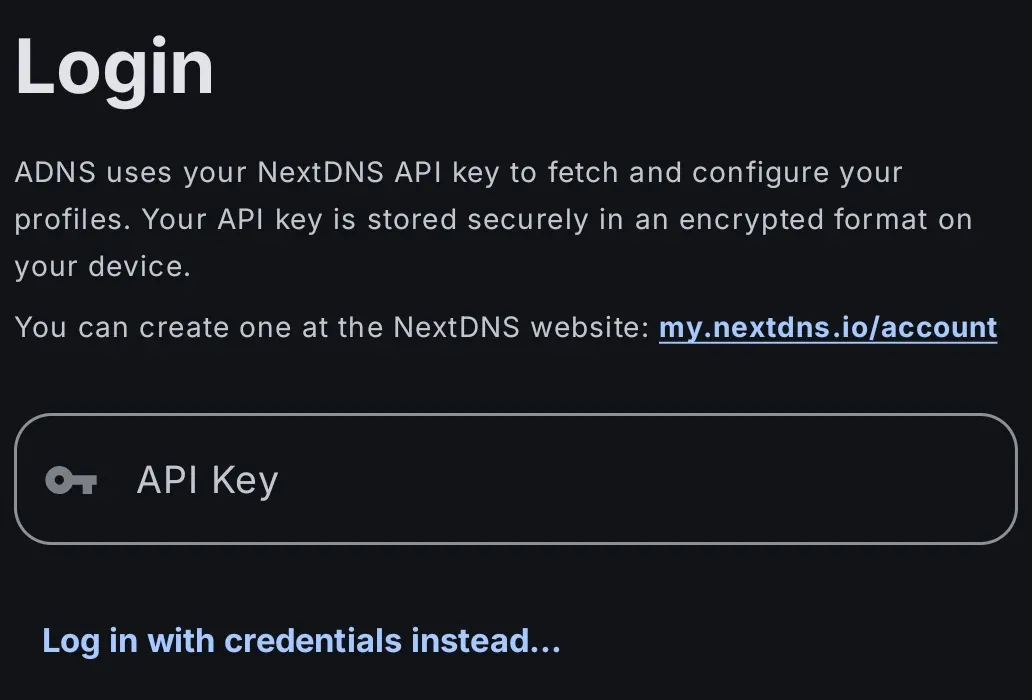
Select or create a profile
Section titled “Select or create a profile”Profile selection is required before the flow can continue. If your account already has profiles, ADNS preselects the first profile; select another one if needed, then continue. If the account has no profiles, choose Create New Profile, give it a name, and select the new profile. With no profile selected, you cannot continue.
When you enter this flow from Settings, selecting the profile completes the standalone account connection. During first-run onboarding, selecting the profile is followed by Choose how to use ADNS, where you choose NextDNS control-only or Device DNS control. Control-only manages the selected NextDNS profile and does not change Android Private DNS.
Session expiry and logout
Section titled “Session expiry and logout”If ADNS can no longer use the saved session, it shows NextDNS session expired and asks you to Sign in again to manage profiles. Your Android Private DNS configuration is left unchanged.
To disconnect deliberately, open the signed-in NextDNS account settings and choose Log out, then confirm. Logout removes the local NextDNS session; it does not change Android Private DNS. Removing the API key from your NextDNS account separately revokes that key at the service.
For device-control setup, see Set up the Quick Settings tile. For storage and permissions, see Read the privacy summary and Understand permissions.